![Datylon_logo_blue_NEW2.svg]](https://help.datylon.com/hubfs/Datylon%20Brand%20Identity/Datylon_logo_blue_NEW2.svg)
Introduction
A pattern is a set of repeated visual elements that can serve both aesthetic and functional purposes. In data visualization, patterns play an important role in making charts more accessible. They offer an additional way to distinguish chart elements beyond color alone. This is particularly valuable for viewers with color vision deficiencies, for whom patterns can significantly improve readability. When some elements are defined primarily by color, combining them with a carefully designed pattern palette makes those elements easier to differentiate.
Please note that patterns are only available in RGB mode
Creating a custom palette
Datylon allows you to create and apply custom patterns to fill chart elements such as bars, icons, and areas. However, patterns cannot be applied to strokes, lines, or text. To use patterns in Datylon, you first need to create or load a palette library. A library is structured into palettes, and each palette contains several patterns or colors.
Patterns are created with a dedicated tool called the Pattern Builder. This tool enables you to edit existing Datylon palettes and to create new palette libraries, which are collections of multiple palettes.
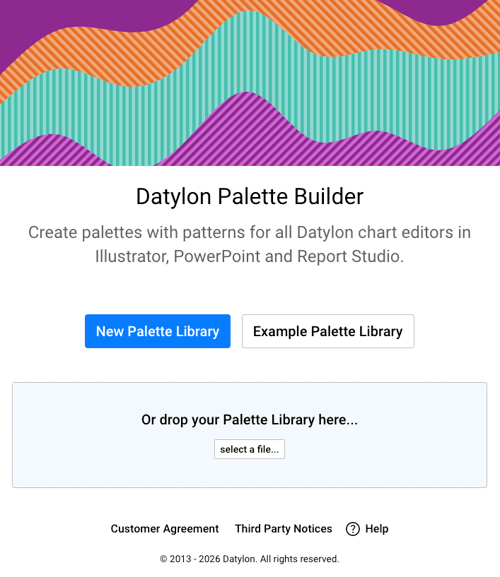
Once you open the Pattern Builder you'll be able to choose between creating a new empty library, loading an example library with a default set of palettes or loading an existing Datylon palette library.
1. To create a new library, select “New Palette Library.”
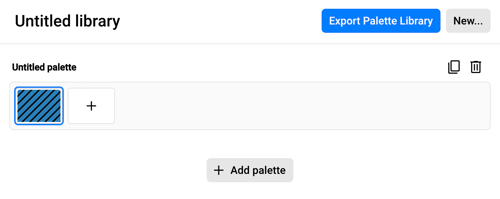
2. A new library window opens. To add a new palette to this library, select “+Add palette.”

3. To add a pattern or color to the palette, select the “+” button in the palette pattern menu. An editor opens on the right side of the window. In the editor, you can also copy or delete the selected pattern using "copy" and "trash" icons.

4. A palette can consist of either a solid color, a pattern, or a combination of both. You can choose the desired option by selecting “Color” or “Palette.”
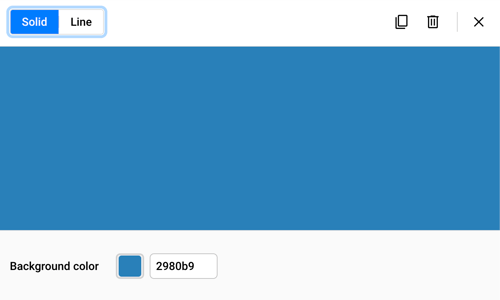
5. Colors can be defined using the color picker, or by specifying RGB, HSL, or HEX values.
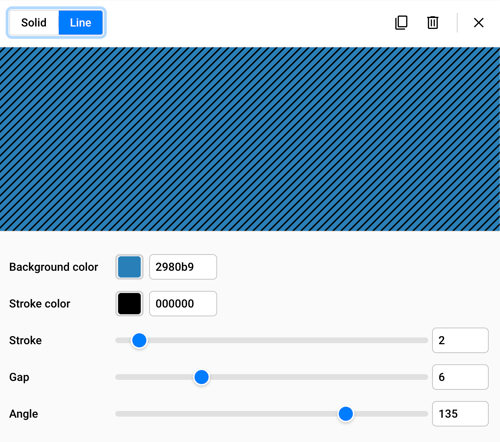
6. Patterns in a palette are created using parallel lines, which you can configure with the following properties:
- Use the "Stroke" property to change the thickness of the line.
- Use the "Gap" property to adjust the distance between the lines.
- Use the "Angle" property to rotate the direction of the parallel lines.
- Use the "Stroke Color" property to set the color of the line, and the "Background" property to define the background color.
7. After you finish configuring your palettes, you can save the pattern library. The pattern palette library is saved as a .json file, which you can later load and reuse in Datylon.
Using custom pattern palettes in Datylon editor.
To use custom pattern palette library you need to add it to your Datylon color library. You can also use a default pattern library.
- Go to Color property of a chart element you want to apply pattern to.
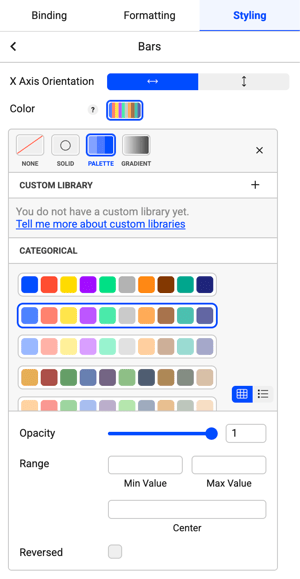
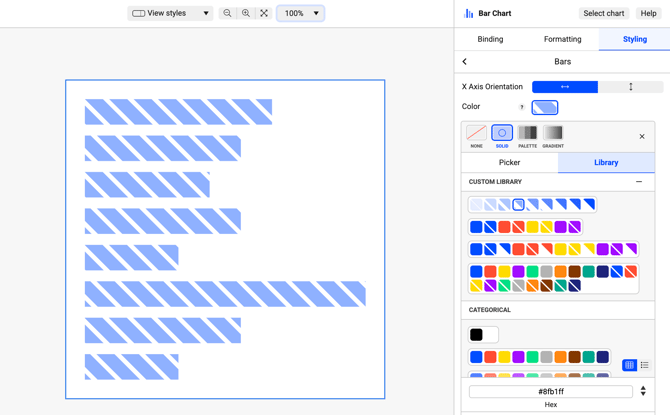
- Choose "Solid" or "Palette" option. In the "Solid" option you need also to switch to "Library" tab.
- To add your custom library press a "+" sign next to "Custom Library" and select a .json file you've created with the Pattern Builder.
- Now a set of custom patterns can be found under "Custom Library" and you can apply it to chart element.